Worktrees
A worktree is an isolated git checkout inside a project: one branch with its own files, isolating branch work. Every session binds to a worktree at start; file changes, @ picker, and ! shell commands act on that checkout.
This page covers managing worktrees: create, switch, merge, rebase, delete, and reconcile histories. For session binding and orphan handling, see Sessions.
The Worktrees tab
Open a project, select Worktrees. Each worktree is a card; two buttons sit above:
| Button | What it does |
|---|---|
| Refresh | Reload worktree list and live git state |
| New Worktree | Open create dialog |
Each card shows:
| Field | Meaning |
|---|---|
| Name | Branch name, with Main/Current badges |
| Path | Checkout location on disk |
| Commit | Live HEAD, 7-char hash (re-read from git) |
| Last used | When a session last ran here |
| N ahead / N behind | Branch comparison to trunk |
| Sessions | Session count bound to this worktree |
Current worktree is the default for new sessions. A paused merge/rebase adds a paused badge — see Paused operations.
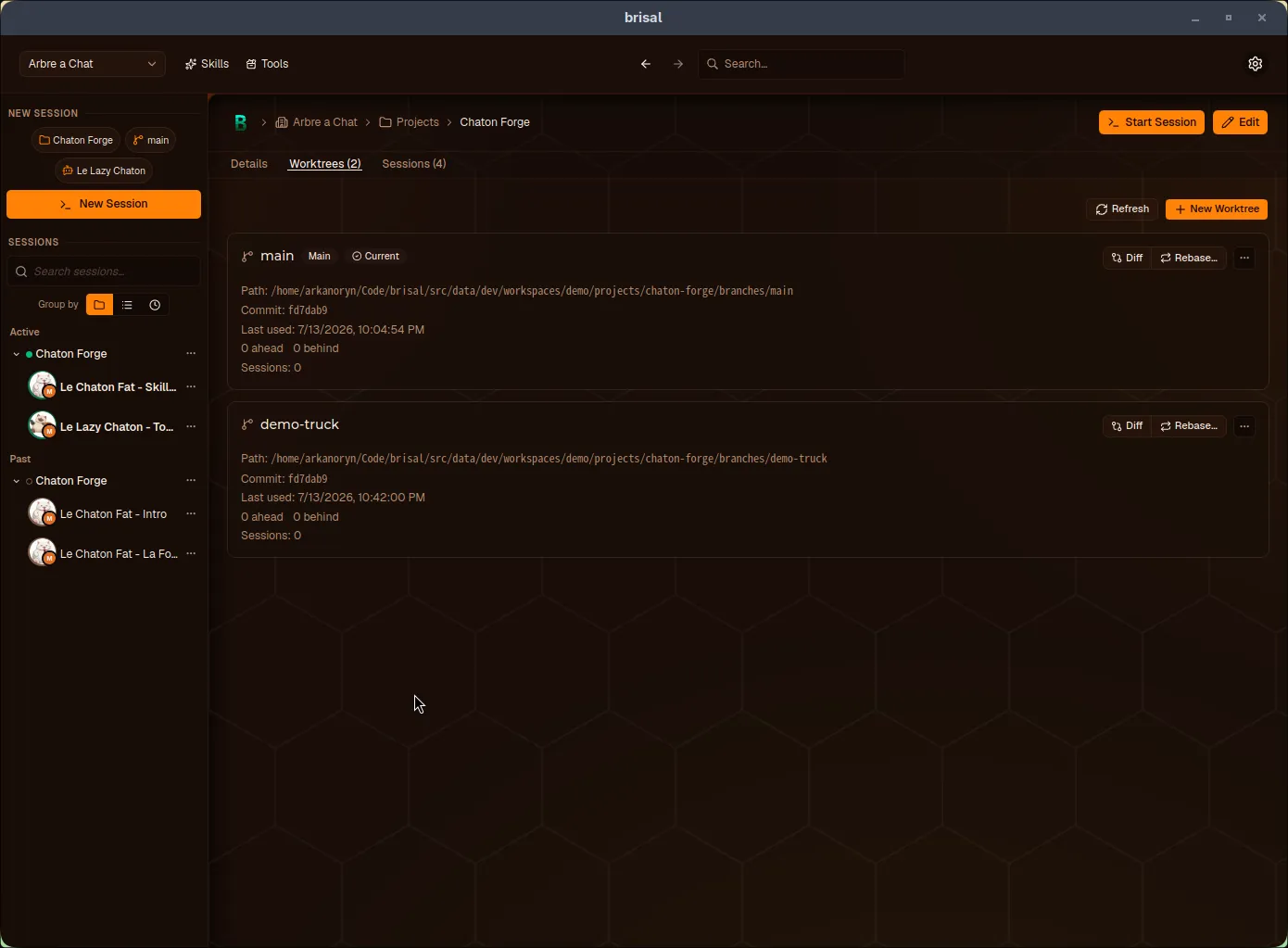
The Worktrees tab: trunk worktree main carries Main and Current badges; each card shows path, live commit, ahead/behind, session count.
Creating a worktree
New Worktree requires:
| Field | Notes |
|---|---|
| Branch name (required) | New branch, e.g. feature/my-branch |
| From branch | Source branch (defaults to current worktree) |
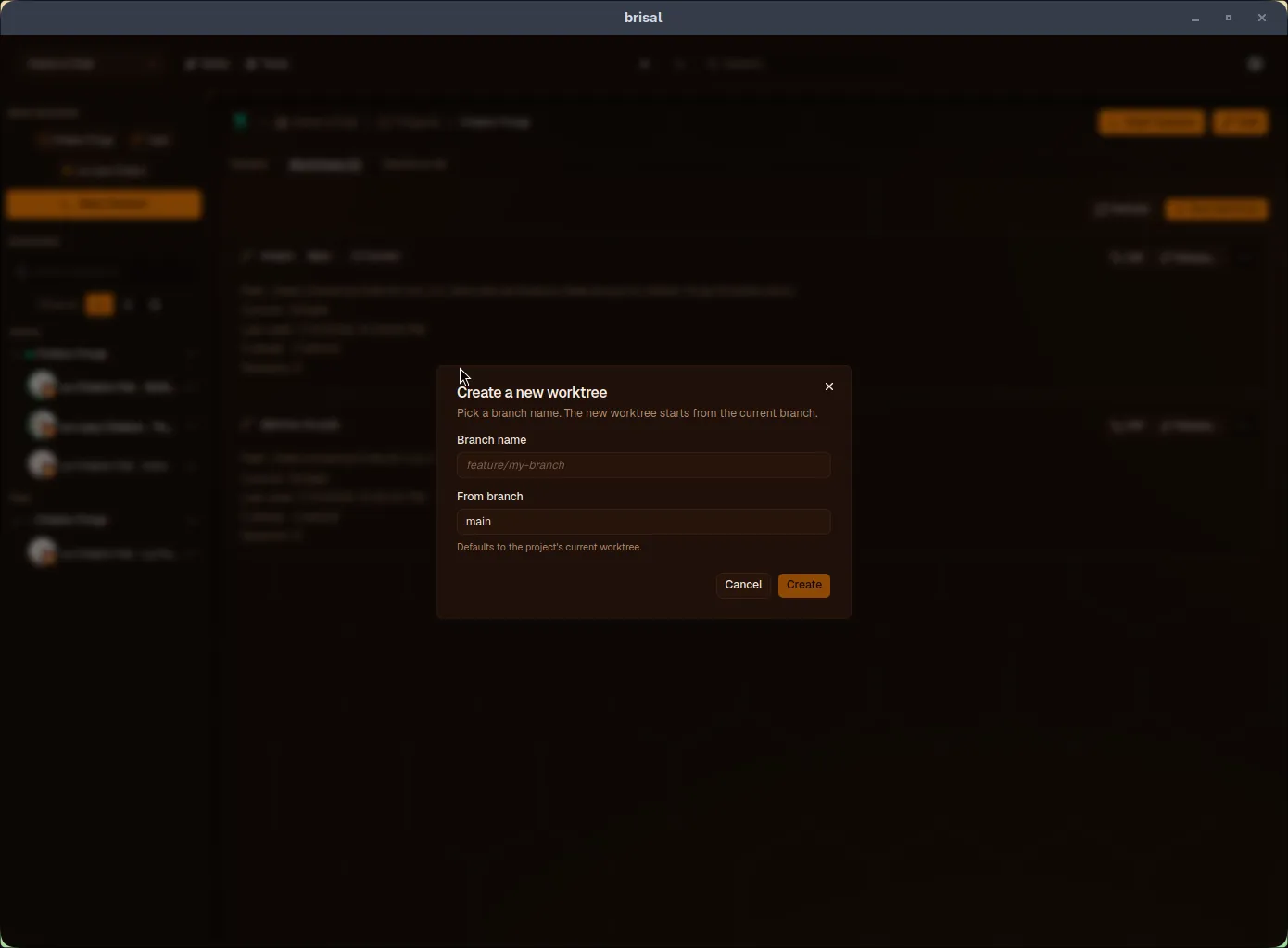
Creating a worktree: name the branch; From branch defaults to current worktree.
Per-worktree actions
Each card has Diff and Rebase… buttons; Merge into…, Set as current, and Delete worktree are under ⋯.
| Action | What it does | Unavailable when |
|---|---|---|
| Diff | Show branch diff from trunk | — |
| Rebase… | Replay branch commits onto another base | Session running here |
| Merge into… | Merge branch into another | Session running here |
| Set as current | Make default for new sessions | Already current |
| Delete worktree | Remove checkout and branch | On main/current worktree, or session running |
Deleting a worktree does not discard bound sessions — they are orphaned: archived, read-only, preserved.
Diffing against the trunk
Diff lists commits ahead of trunk — short hash, author, timestamp, message — with ahead/behind count.
Merging
Merge into… merges the worktree’s branch into a target branch (any other project branch) in one of two modes:
| Mode | Result |
|---|---|
| Normal | Standard merge; preserves individual commits |
| Squash | Combines branch commits into one before merging |
A pre-flight check runs automatically, showing the outcome before you commit:
| Banner | Meaning |
|---|---|
| Clean | No conflicts; branch merges cleanly |
| Up to date | Target already has this branch’s content |
| Conflicts | Merge would conflict in listed files |
| Error | Check failed |
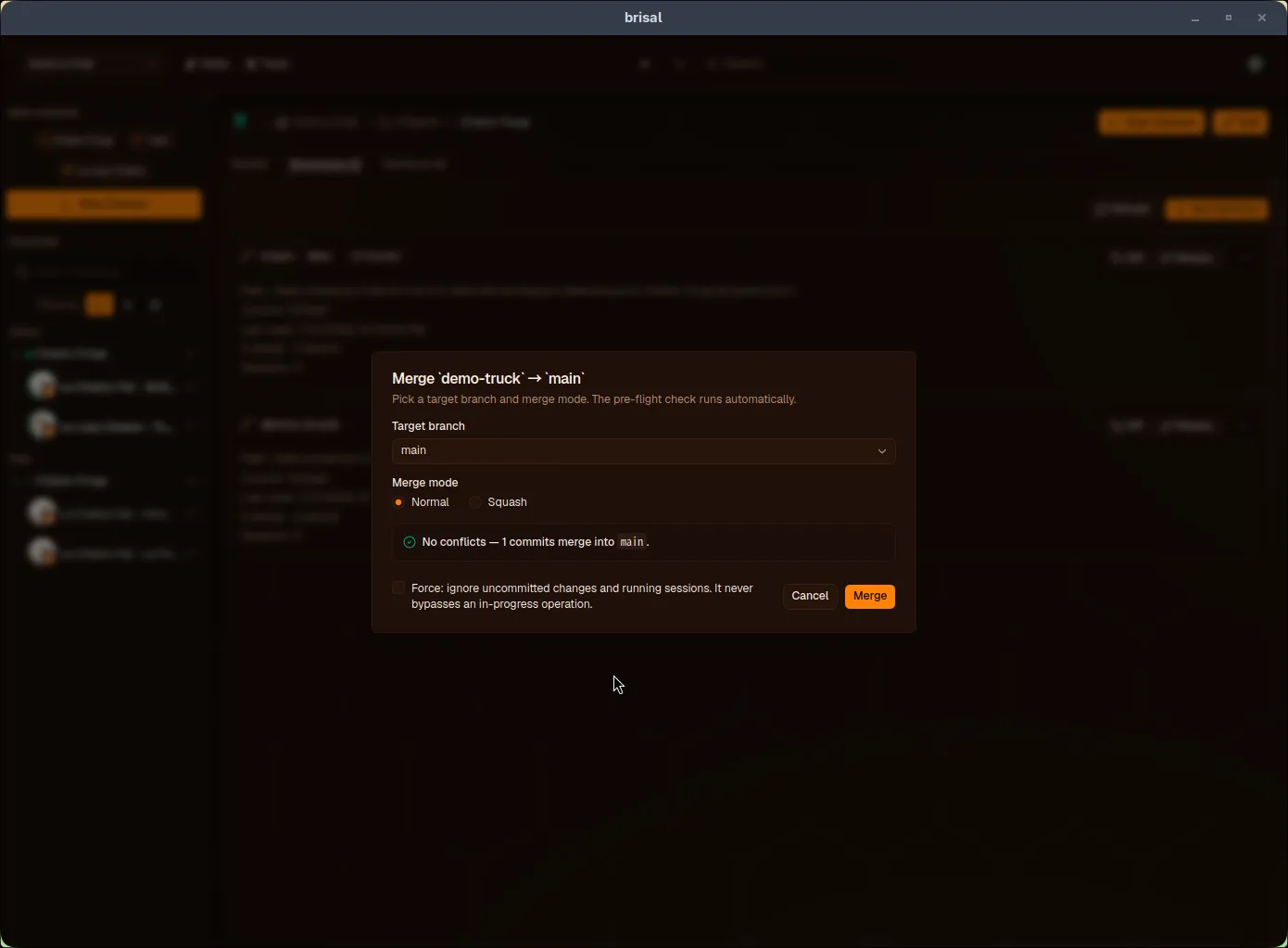
A clean pre-flight merge: green banner confirms no conflicts, enabling Merge.
Merge only enables on Clean. With uncommitted changes, Brisal warns to commit or stash first. Force ignores uncommitted changes and running sessions but never overrides a paused operation. Resolve conflicts inline when pre-flight reports them.
Rebasing
Rebase… replays the branch’s unique commits onto a base branch you pick. No pre-flight; a persistent warning shows commit count to be rewritten with new hashes (rebasing rewrites history).
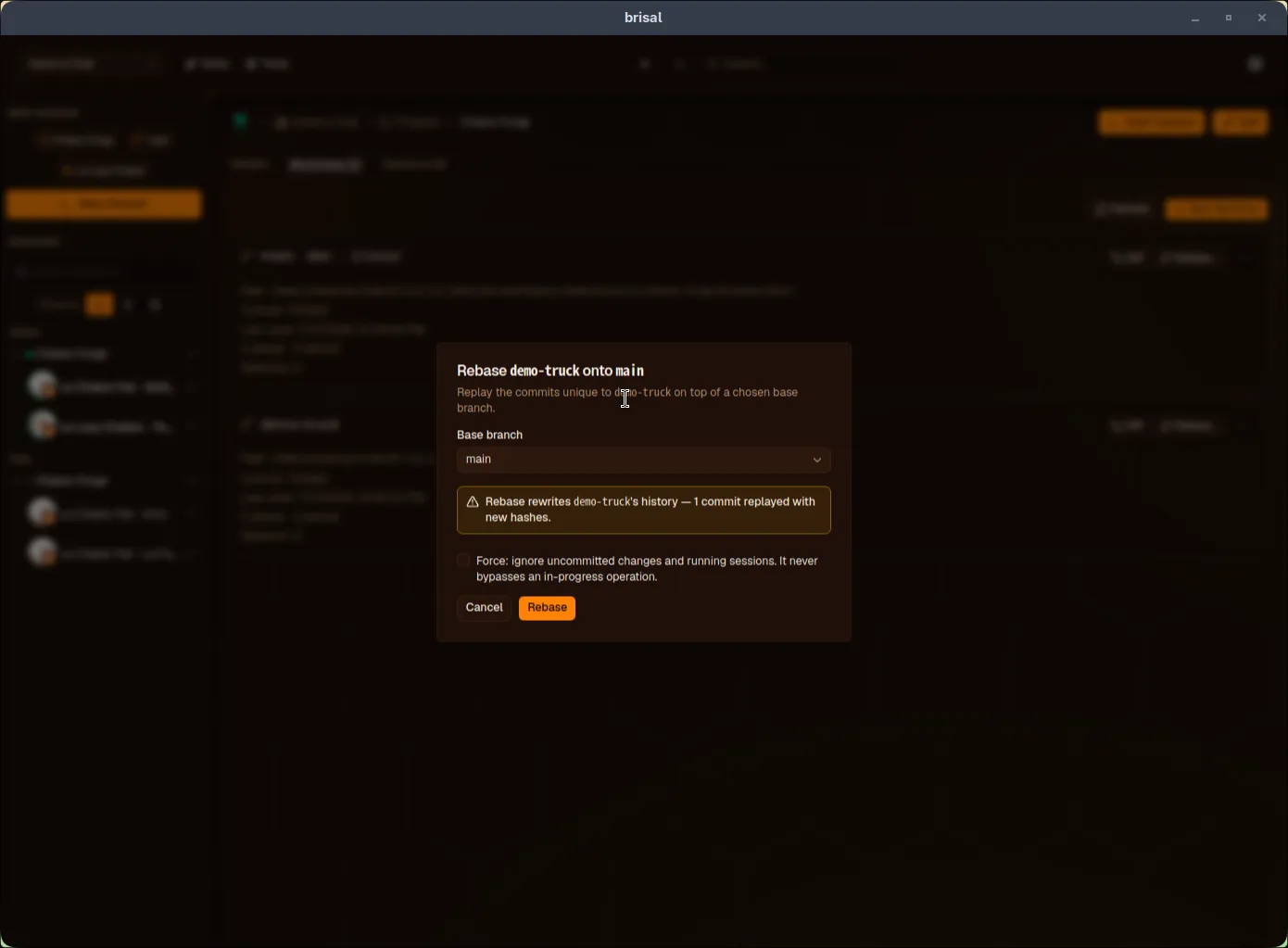
Rebasing: no pre-flight; standing warning shows commit count rewritten with new hashes.
Resolving conflicts
When merge/rebase can’t apply cleanly, it pauses and opens a resolution view listing conflicting files. For each, you see the common ancestor and both sides — labeled by branch name, not “ours/theirs” — and choose which to keep:
- Keep
<branch>— take that branch’s file version.
A counter tracks resolved files. Once all are resolved, Continue finishes the operation; Abort unwinds it to pre-operation state. (A Resolve with AI button is present but not yet enabled.)
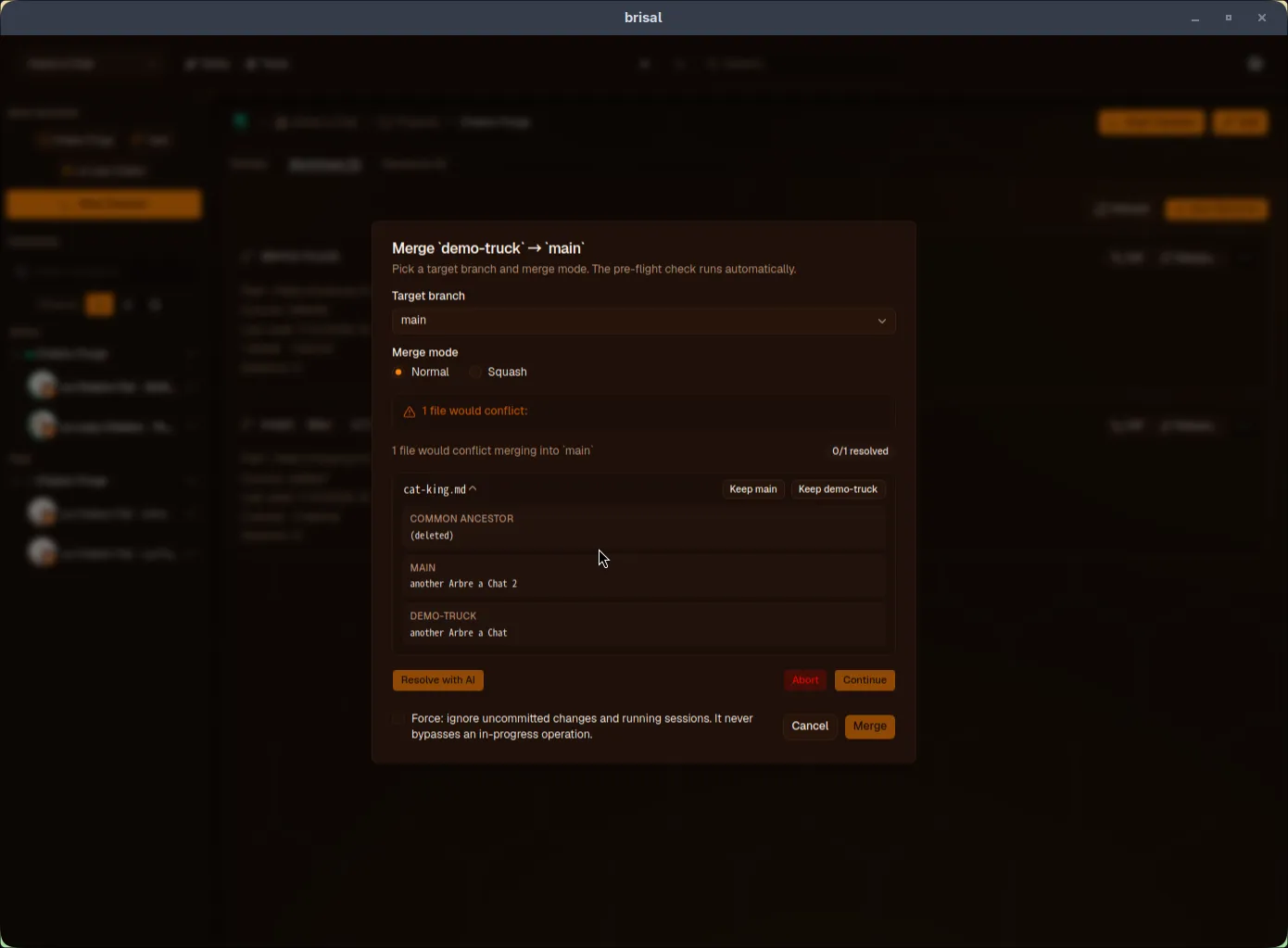
Resolving a conflict: each file offers Keep main or Keep demo-trunk; counter tracks progress.
Paused operations
Closing the dialog mid-conflict doesn’t lose the operation. The worktree card shows a paused badge with Continue and Abort buttons to resume or abandon from the tab.
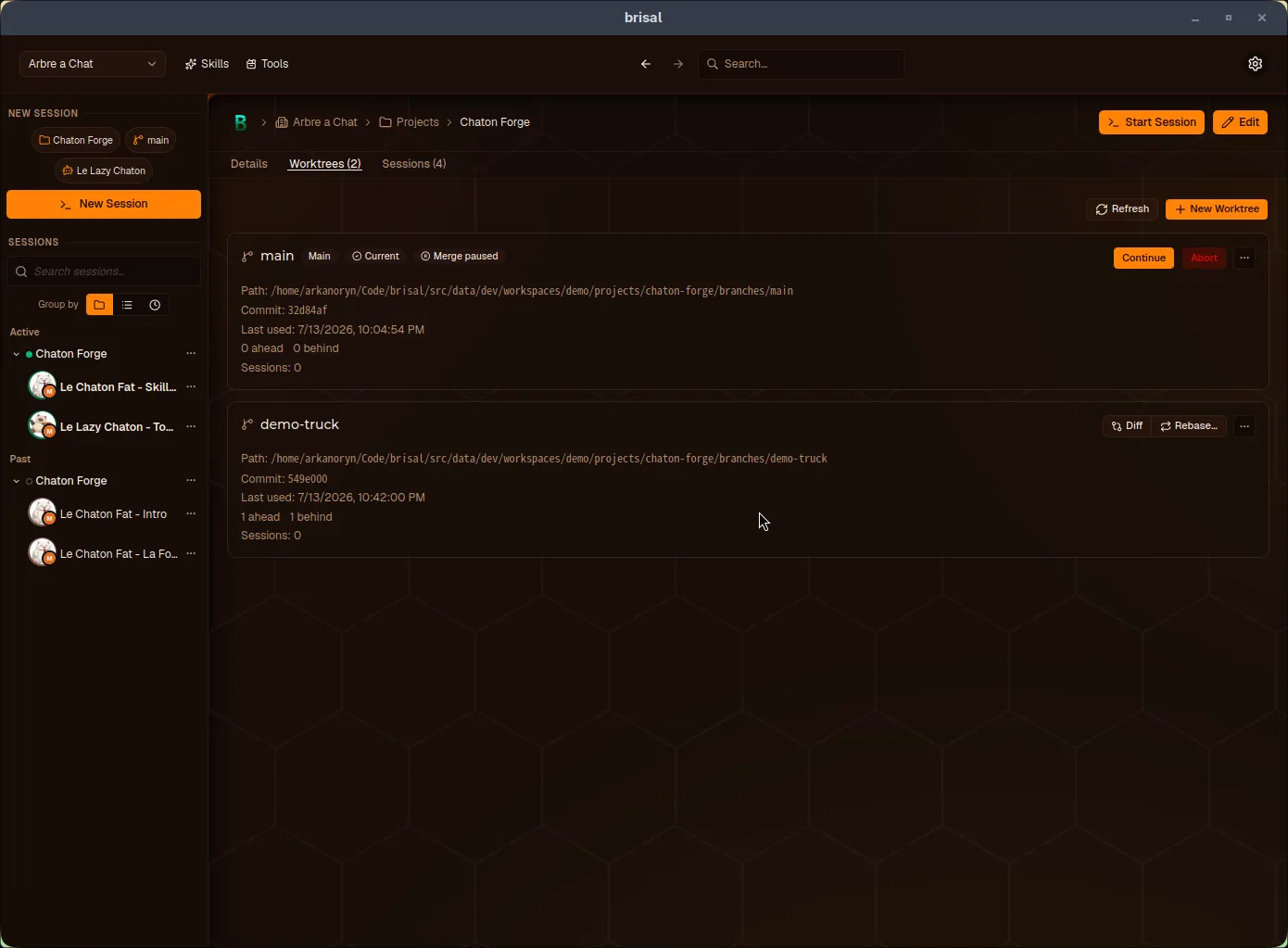
Paused merge: main card shows Merge paused badge with Continue and Abort. A paused rebase reads “Rebase paused N/M” with step count.
Who your commits are authored as
Commits Brisal makes use your workspace git identity; you choose appended attribution trailers. Configure both when editing a workspace — see Workspaces › Git & commit authoring.
The agent can run git too
The above covers the manual surface. Your agent can also perform git operations via its built-in Git tool: commit, stage, stash, merge, rebase, and (with capability and remote) fetch, pull, push. Agent-run merge/rebase conflicts pause the same way; resolve them from the same view.
What to read next
- Sessions — session-worktree binding and orphaning.
- Projects — bare-clone layout and
fetch/pushbridging. - Workspaces — git identity and attribution trailers for commits.