Models
A model is the specific LLM that answers a request — Mistral Medium 3.5, for example. Where a provider is the service Brisal talks to, a model is the thing on that service you actually run. Every model belongs to a provider: it’s the provider that supplies the endpoint and key, and the model that decides how big a prompt can be, whether it can call tools or see images, and what it costs per token.
In Brisal a model is a first-class entity, not just a name in a dropdown. It carries its own record — a context window, capability flags, a pricing tier, and tags — so the app can show you what a model can do before you pick it, and so an agent can bind to one deliberately rather than to a bare string.
Two tiers: system and workspace
Models follow the same clone-then-own mechanic as providers and agents: Brisal ships a read-only System catalog, and you add one into a workspace provider to get an editable copy of your own.
System models ship with Brisal, are read-only, and appear with a Template badge. Today the built-in catalog contains Mistral Medium 3.5. You see system models in the System models panel on a provider’s Models page.
Workspace models are yours. Each belongs to one workspace and is bound to one of that workspace’s providers. You can edit every field. Create one by adding a system model or by creating a custom model from scratch. Workspace models carry a Workspace badge.
The full scope model — system vs. workspace tiers, and where each is browsed — lives on Settings.
Adding a model to a provider
Open a provider’s models from its card’s Models action (on the workspace Providers tab). The page has two areas:
- A System models panel at the top — the built-in models that fit this provider’s type, each with an Add button, alongside a Custom model tile.
- Available models below: the models usable through this provider. On a provider you’ve just connected, this reads No models yet — Add your first model to use with this provider.
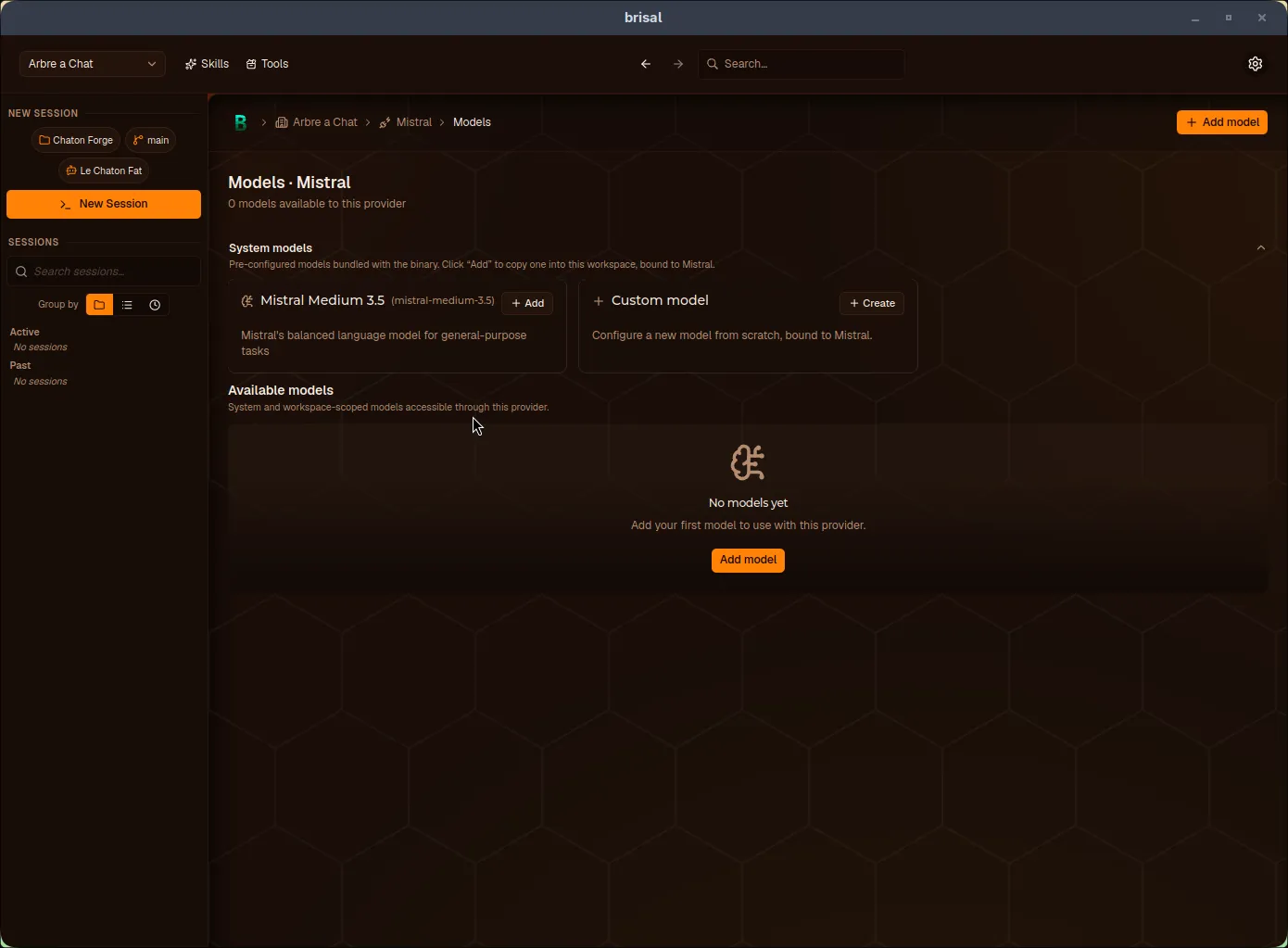
A freshly connected provider’s Models page: the System models panel on top, an empty Available models area below.
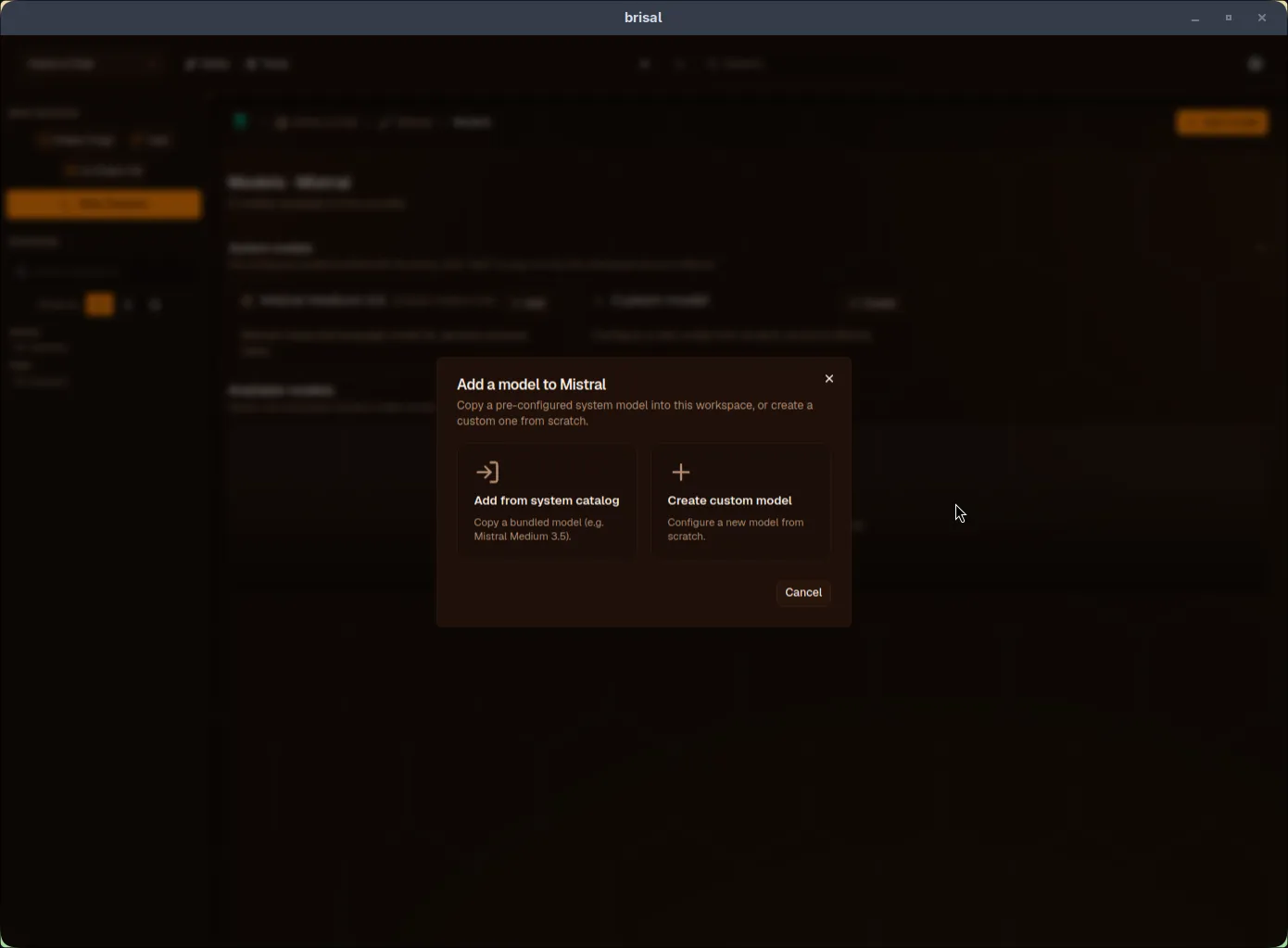
The quickest path is the Add button on the system model’s card in the panel — it goes straight to the copy dialog. The Add model button (in the header, or in the empty state) instead opens a chooser first — Add from system catalog or Create custom model — then walks you through picking a model.
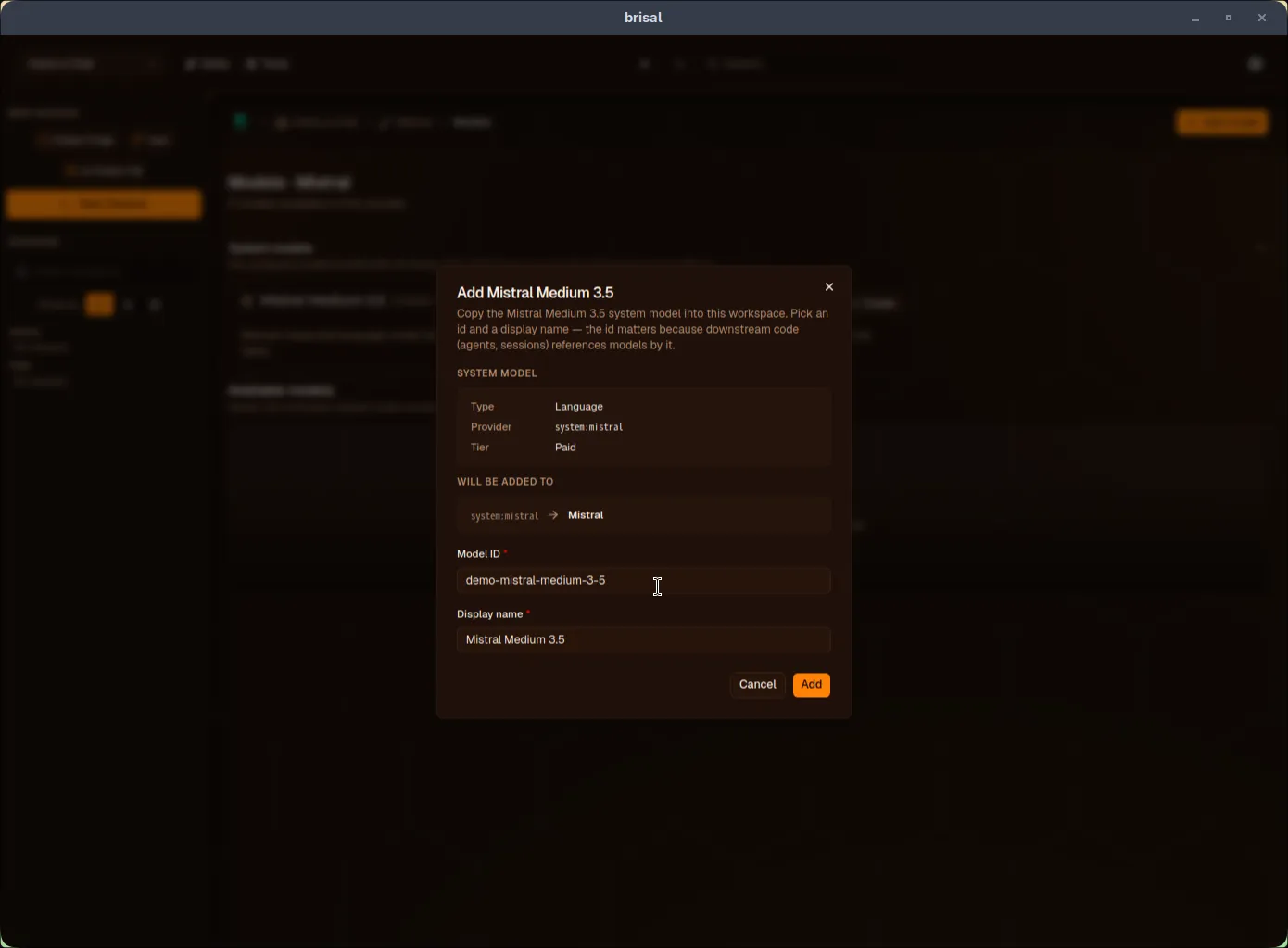
Either route lands on the copy dialog, Add Mistral Medium 3.5. It shows the source model (type, provider, tier) and where it will be added, and asks for two things:
- a Model ID — a short slug for your copy. The Mistral Medium 3.5 template
suggests
mistral-medium-3-5, then numeric suffixes when that id is taken. You can edit the suggestion. It must be unique in the workspace and match^[a-z0-9-]{3,32}$. This id matters: agents and sessions reference the model by it. - a Display name — the human label (defaults to the source’s name).
Confirm, and the copy lands in your Available models list as an ordinary, fully editable workspace model, bound to this provider.
Copy-then-own: what you get
Adding a system model is a copy, not a link — the same clone-then-own mechanic as connecting a provider: you own every field, and there’s no auto-update if the built-in catalog later changes. One model-specific twist: the copy is bound to one provider — the one you added it to, whose endpoint and key it runs against.
Custom models
The Add model chooser also offers create a custom model from scratch — for a model the built-in catalog doesn’t cover (a newer Mistral release, a fine-tune, a self-hosted endpoint). The form asks for:
| Field | What it’s for |
|---|---|
| Name & id | The label and the internal slug (^[a-z0-9-]{3,32}$). |
| Provider model id | The wire name the service expects (e.g. mistral-medium-3.5) — this is what Brisal sends on the request, distinct from your slug. |
| Provider | The workspace provider this model runs against. |
| Type | Language, Embedding, Vision, Speech-to-Text, Text-to-Speech, or Custom. |
| Capabilities | Free-form tags (comma-separated). |
| Constraints | Context window and max input/output tokens, plus streaming / tools / vision flags. |
| Token usage | Prompt (Input), completion (Output), and Cached input cost per million tokens, currency, pricing tier, and whether the provider needs an API key. |
Choosing a model
You don’t pick a model on its own — you pick it when you set up an agent, and the choice is scoped to the agent’s provider. The agent’s model dropdown lists the models available on that provider: the workspace models you’ve added to it. If the dropdown reads No models available, the provider has none yet — go add one.
Mid-session model switching (changing the model while a chat is running) belongs to the session, not the agent — see Sessions.
What a model tells you
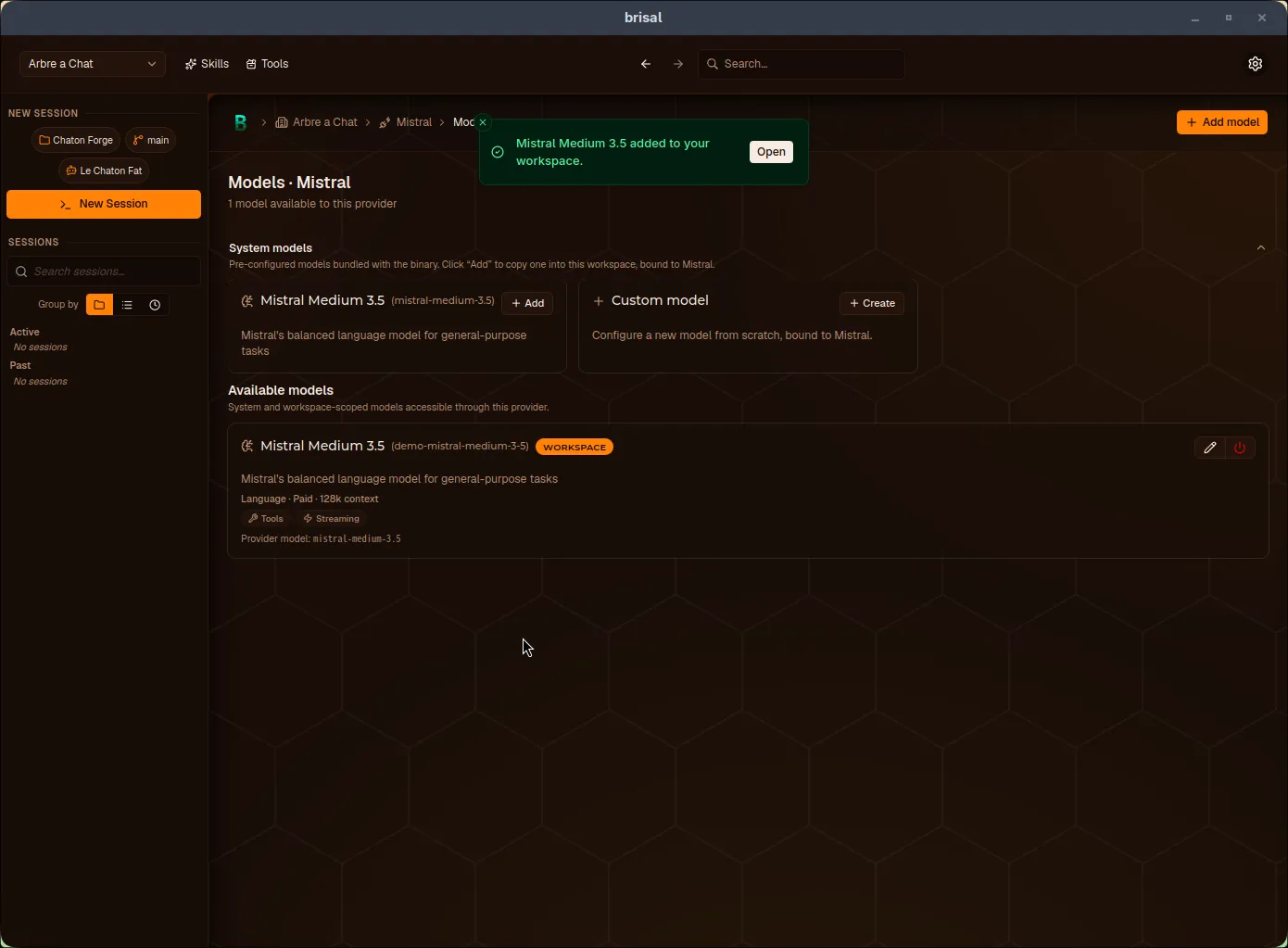
Each model card in Available models surfaces the metadata that decides whether it fits your task, without opening the model:
- Type, tier & context window — e.g. Language · Paid · 128k context. The context window is how much text (prompt + reply) the model can hold at once.
- Capability chips — Tools (can call functions), Vision (can read images), Streaming (streams the reply as it’s generated). Only the ones the model supports appear.
- Source badge — Workspace for one of yours (a copied or custom model).
- Provider model — the provider-side wire name, shown when it differs from your id.
Cost and pricing tier live on the model too — per-million-token prompt
(Input), completion (Output), and Cached input cost; Brisal records
them so the model list stays honest about what’s free, paid, or experimental, and
so a session’s cost meter can apply the cached-token
discount. The Cached input rate is what a provider charges for prompt tokens
served from its prompt cache (Mistral bills these at a tenth of the input rate);
leave it at 0 if the provider has no such discount, and cached tokens are simply
billed at the full input rate.
Disabling a model
A workspace model can be disabled — set aside without being removed. A disabled model drops out of the agent picker and wears a Disabled badge, but its file stays on disk, so you can re-enable it later by editing it.
Where to find your models
You reach a workspace’s models through a provider: open the workspace Providers tab, then a provider card’s Models action. That per-provider view keeps each model next to the provider it runs on — which is how models work, since every model is bound to exactly one provider.
What to read next
A model is what an agent runs on. Now that a provider is stocked with models: