Explorer
The Explorer is a session pane’s collapsible side panel, docked to one edge of the pane, that surfaces information about that session without leaving the chat. Where the sidebar reaches across the whole workspace, the Explorer belongs to one session. Don’t call it a second sidebar.
- Session-scoped. Whether it’s open and which modules are expanded is remembered per session — reopen a session and the Explorer comes back the way you left it. When a pane splits (a later release), each pane carries its own Explorer for its own session.
- Side is a workspace appearance setting. Left or right, set by the
per-workspace
explorer_positionpreference (default right). The sidebar always stays leftmost, so a left-docked Explorer sits between the sidebar and the transcript. On a narrow pane the Explorer hides itself to give the transcript room. - Open from the keyboard.
Ctrl+BEHtoggles it;Ctrl+BEDopens it to the Diff module;Ctrl+BEFto Files. See Keyboard shortcuts → Explorer mode.
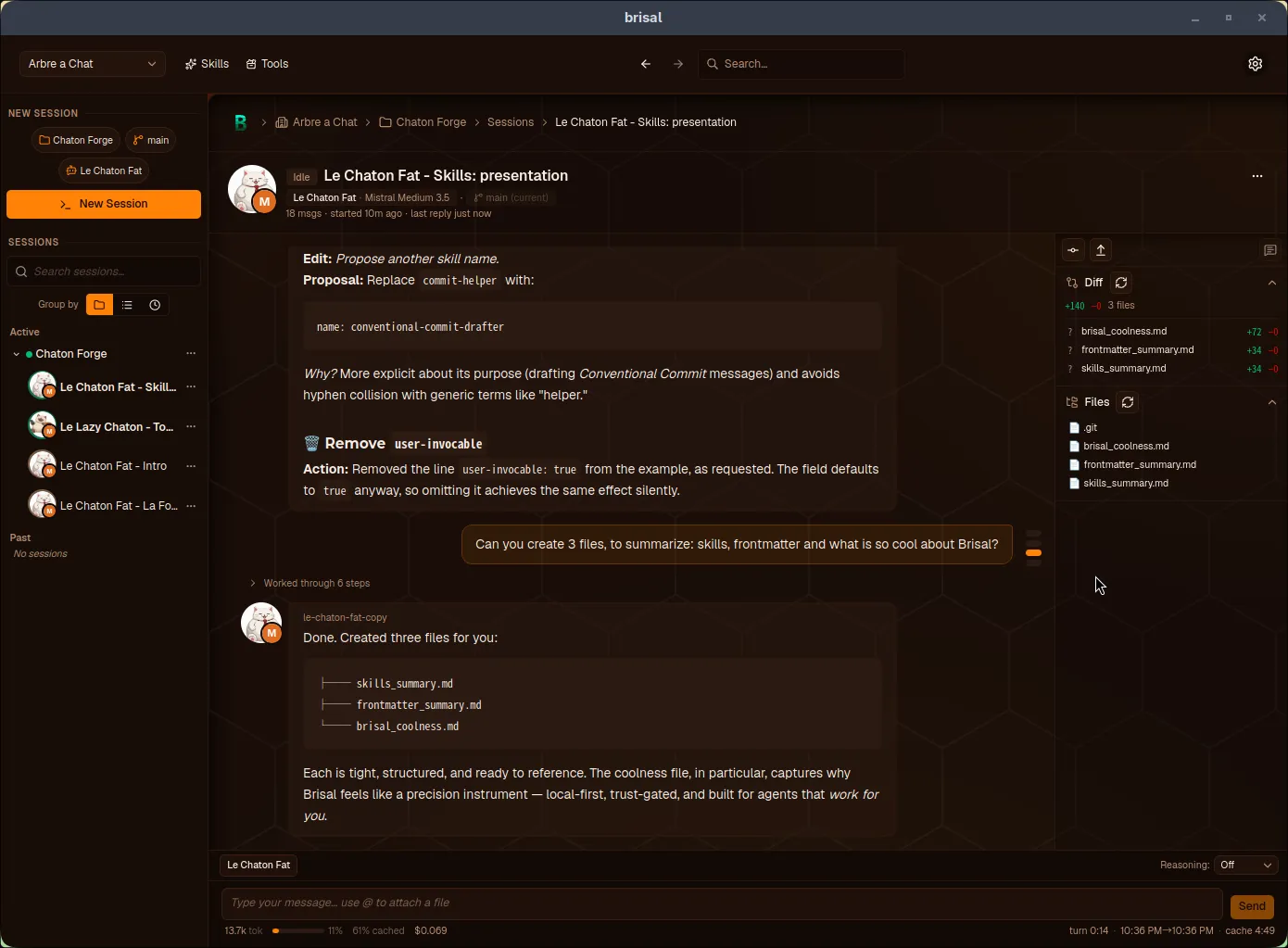
The toolbar
A compact toolbar sits at the top of the Explorer — a row of session-level actions pinned above the modules. It isn’t itself a module: not collapsible, no Explorer-mode letter.
- Annotated messages. Opens a dropdown listing every message that carries a saved annotation draft, newest first; a badge shows the count. Each row previews the message and the comment count. Select one to scroll the transcript to that message and reopen its annotate overlay — the way back to a review you set aside. Disabled when no message has a draft.
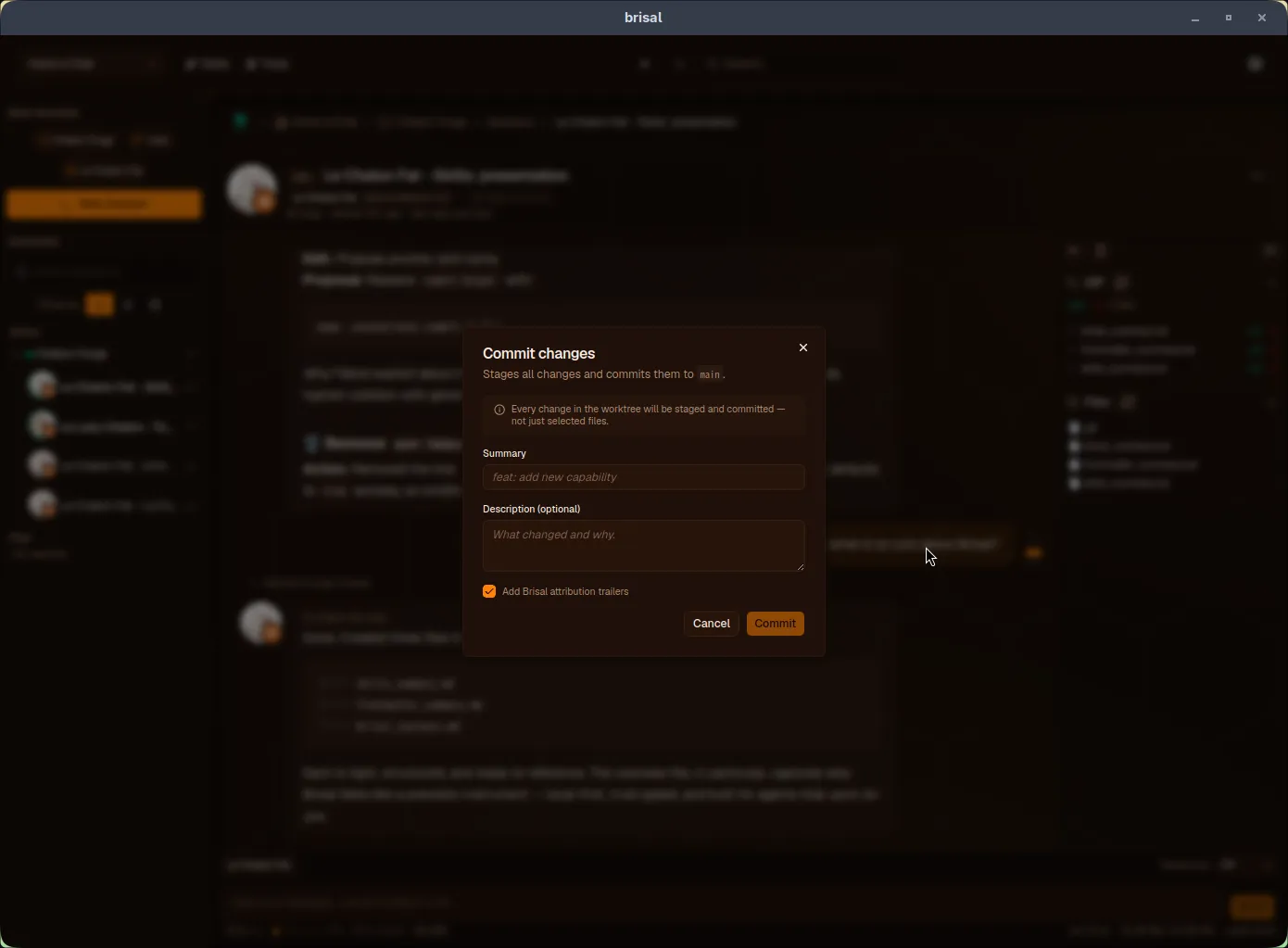
- Commit. Opens a dialog: required summary, optional description, and a checkbox for Brisal attribution trailers. Then commits the session’s worktree. Committing with nothing to commit is refused rather than recording an empty commit.
- Push. Pushes the session’s worktree to its remote.
Modules
The Explorer stacks modules — self-contained, collapsible sections, one per
kind of session information — as an accordion. Each module is addressable by a
letter in Explorer-mode hotkeys (d → Diff, f → Files). Today there are two:
Diff and Files, with more to come.
The Diff module
The Diff module shows the working-tree diff of the session’s
worktree
— what’s changed since its last commit. A summary line leads with total
+additions, −deletions, and the file count; below it, one row per file
shows a change-type letter (Added, Modified, Deleted, Renamed,
Copied, or ? untracked), the path, and that file’s added and deleted
counts (or a binary marker where line counts don’t apply).
- Refreshes on its own when a turn finishes — after the agent edits files, the diff reflects them without you asking. A Refresh button forces a re-read.
- When the worktree isn’t a git repository it reads “Not a git repository”; with a clean tree, “No changes since last commit.”
- Very large diffs are capped at 200 files, with a “Showing 200 of N files” note, so a sprawling change never floods the column.
The Files module
The Files module is a file browser for the session’s worktree — a lazy tree you expand folder by folder. Where the Diff module answers what changed, Files answers what’s there. Same chrome as the Diff module: a Refresh button, automatic refresh when a turn ends.
- Click a folder to expand or collapse it; children load on first expand. Click a file to open it in the file viewer.
- The tree lists everything in the worktree — dotfiles,
node_modules,.git,target, and yes.env— sorted folders-first, then case-insensitively by name. This is your own file explorer for your own project, not the agent’s read path, so nothing is hidden from you. - When the worktree isn’t a git repository it reads “Not a git repository.”
- In Explorer mode the arrow keys drive the tree — up/down move the selection, right/left expand and collapse, Enter opens the selected file — so you can browse without the mouse.
The file viewer
Opening a file raises a viewer overlay over the transcript. It’s scoped to the transcript column, not the whole pane, so the session header and Explorer stay reachable with a file open; Escape, the close button, or a click on the backdrop dismisses it without leaving Explorer mode.
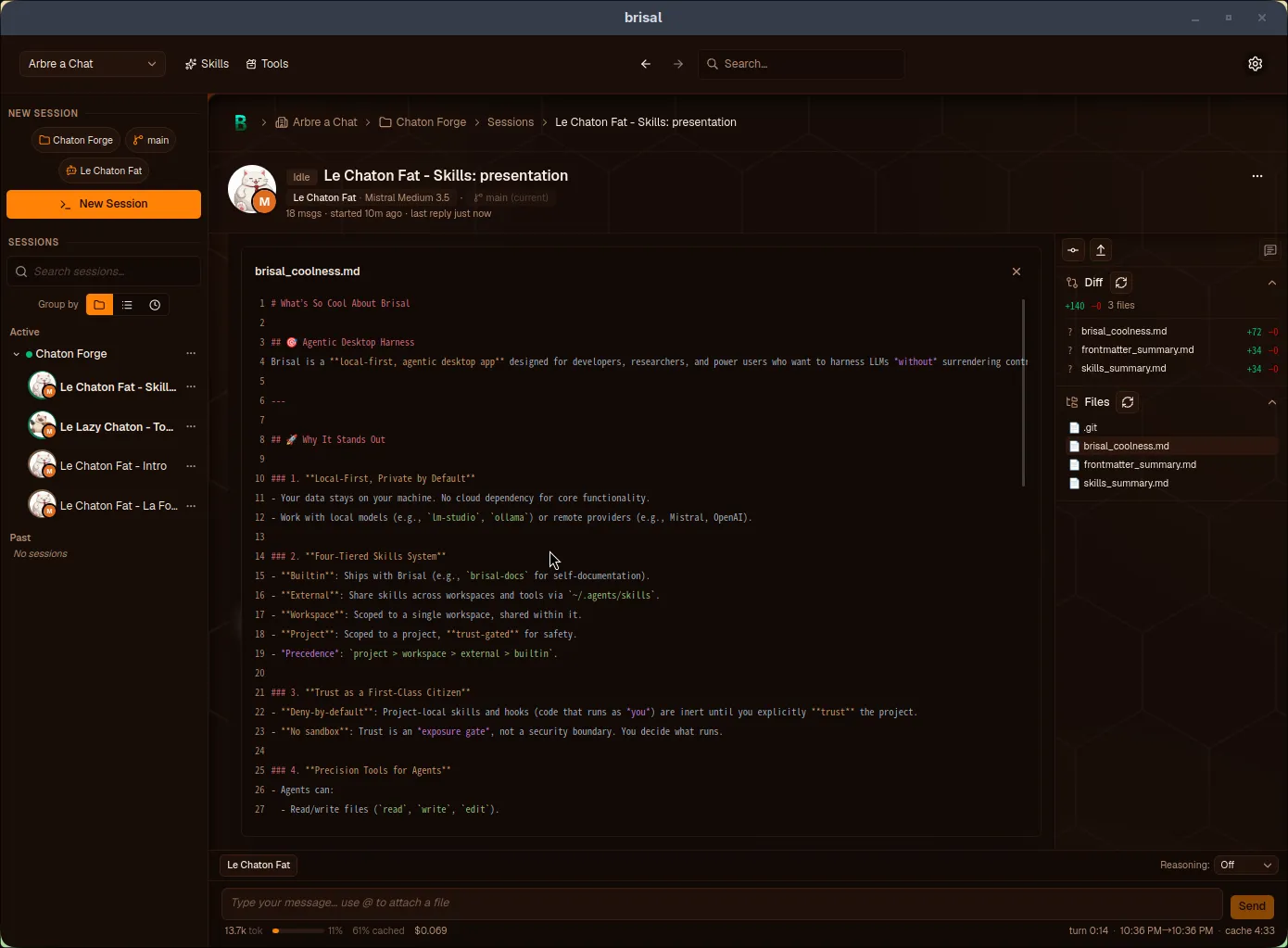
- Text is shown with line numbers and full syntax highlighting. The colors come from the workspace’s code theme; the surface stays transparent so it tracks your palette.
- Long files load in pages of 500 lines: a “Showing first N lines” note and a Load more button extend the view on demand.
- Images (
png,jpg,gif,webp,svg) render inline; anything binary shows a small fallback card with the file’s name and size.
What to read next
- Layout & navigation — the four regions the Explorer sits inside.
- Sessions — the session the Explorer belongs to, and how its worktree is chosen.
- Keyboard shortcuts — the modal mode that drives the Explorer from the keyboard.