Projects
A project is where work happens in Brisal. A workspace is the wall around a context; a project is one unit of work inside that wall — a codebase, task, or effort you open sessions against.
Everything a session needs lives in the project: the sessions themselves and the project’s own agents and skills. Workspaces hold any number of projects, all isolated from projects in other workspaces.
Project vs workspace
| Workspace | Project | |
|---|---|---|
| Role | The wall — compartmentalizes contexts | One unit of work inside that wall |
| Holds | Projects, providers, models, agents, skills, theme | Sessions, workflows, its own agents & skills |
| How many | Usually one; more only if you need separation | As many as you want per workspace |
| Selection | Exactly one workspace selected at a time | Exactly one project selected within the workspace |
Creating a project
Every project has a source — where its files come from:
| Source | Use it when | Required field |
|---|---|---|
| From Scratch | You want an empty project for notes, planning, or a code-free first chat | Name |
| From Local Source | The code already exists on this machine | Name and local path |
| From Remote (Git) | The code lives in a Git repository you can reach over HTTPS or SSH | Name and a clone URL (public HTTPS, or SSH via your agent) |
Remote project creation is host-agnostic: GitHub, Codeberg, GitLab, Forgejo, and self-hosted Git servers all work. Brisal picks transport by URL shape and accepts two:
- Public HTTPS —
https://host/org/repo.git, for any repository cloneable without credentials. - SSH, via your SSH agent —
git@host:org/repo.gitorssh://git@host/org/repo.gitfor private repositories.
Insecure or unsupported inputs (http://, git://, file://, empty or malformed URLs) are refused before any network call.
SSH authentication is agent-only: Brisal asks your running SSH agent for a key, stores no credentials, and never reads ~/.ssh. It pins each host’s key on first connect and rejects later changes. Setup and fixing authentication issues is covered in Cloning a repository over SSH.
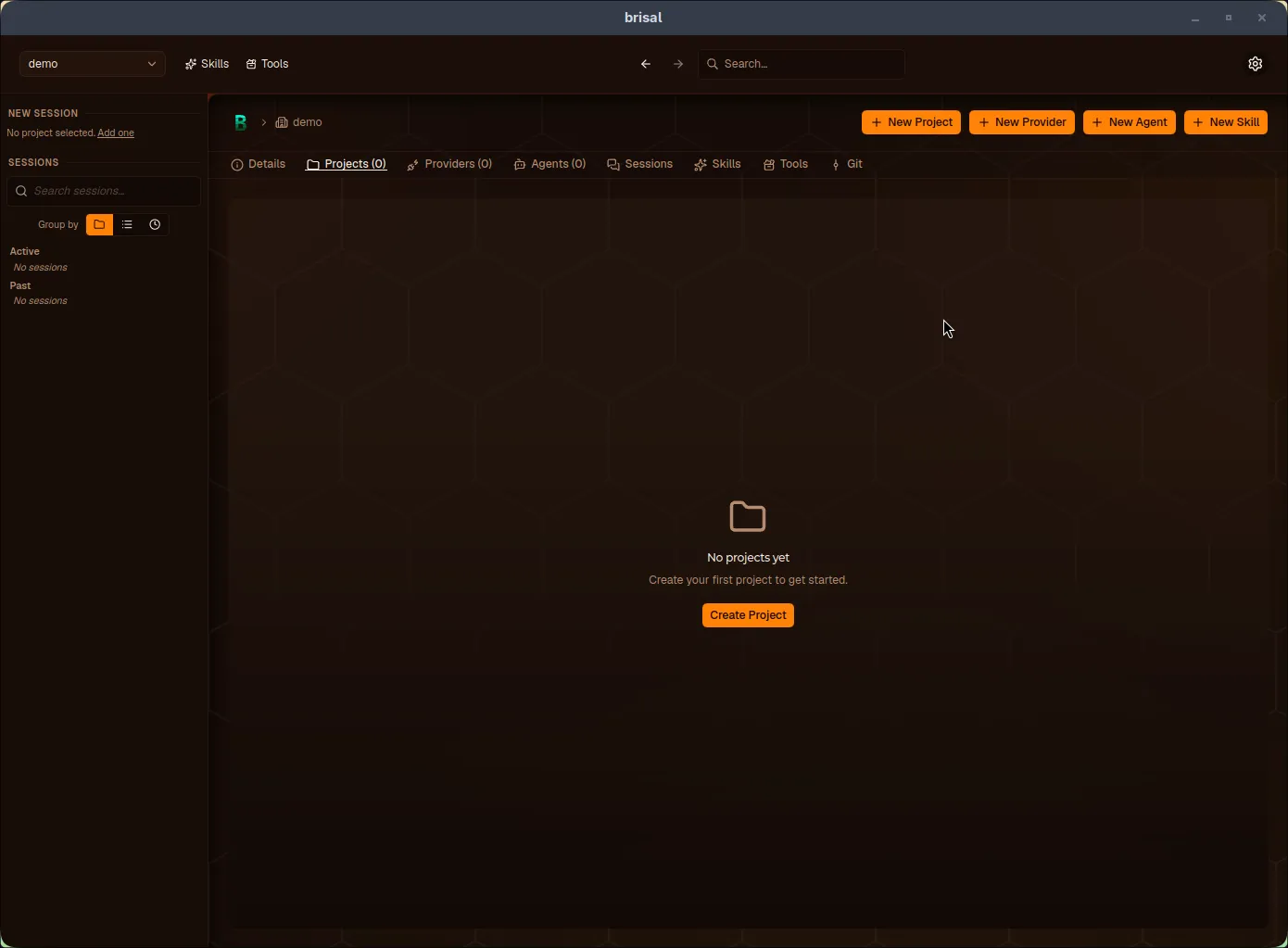
Empty Projects tab: Create Project or + New Project starts the flow.
To create one:
- Open the Projects list in your selected workspace.
- Press + New Project.
- Choose From Scratch, From Local Source, or From Remote (Git).
- Fill in the required fields, then press Create Project.
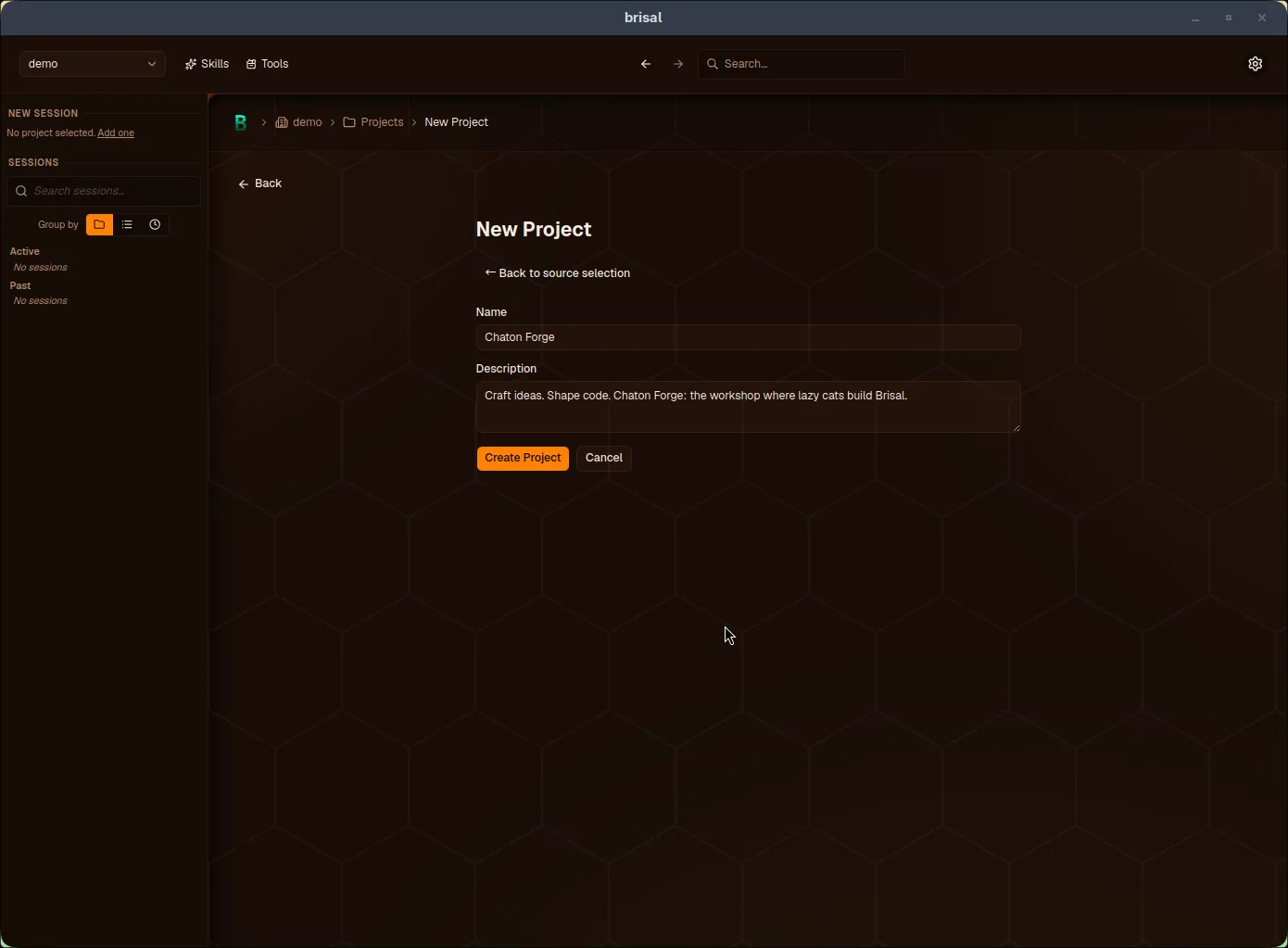
From-scratch project: only the name is required.
Creating a project also selects it, so you land ready to start your first session.
What lives inside a project
Each project owns:
| Inside a project | |
|---|---|
| Sessions | The chats you run against this project — see Sessions |
| Workflows | Reusable DAGs for substantial jobs — see Workflows |
| Agents & skills | Project-scoped agents and skills that only exist here |
Project-scoped skills sit at the most specific end of Brisal’s four skill tiers (builtin → external → workspace → project) and take precedence. They are also why trust exists (below): a project’s own skills and hooks are inert until you approve the project.
Selecting a project
The selected project is the one you’re working in — its card carries a Selected badge. Exactly one project is selected at a time within a workspace.
Press Select on a project’s card to switch to it.
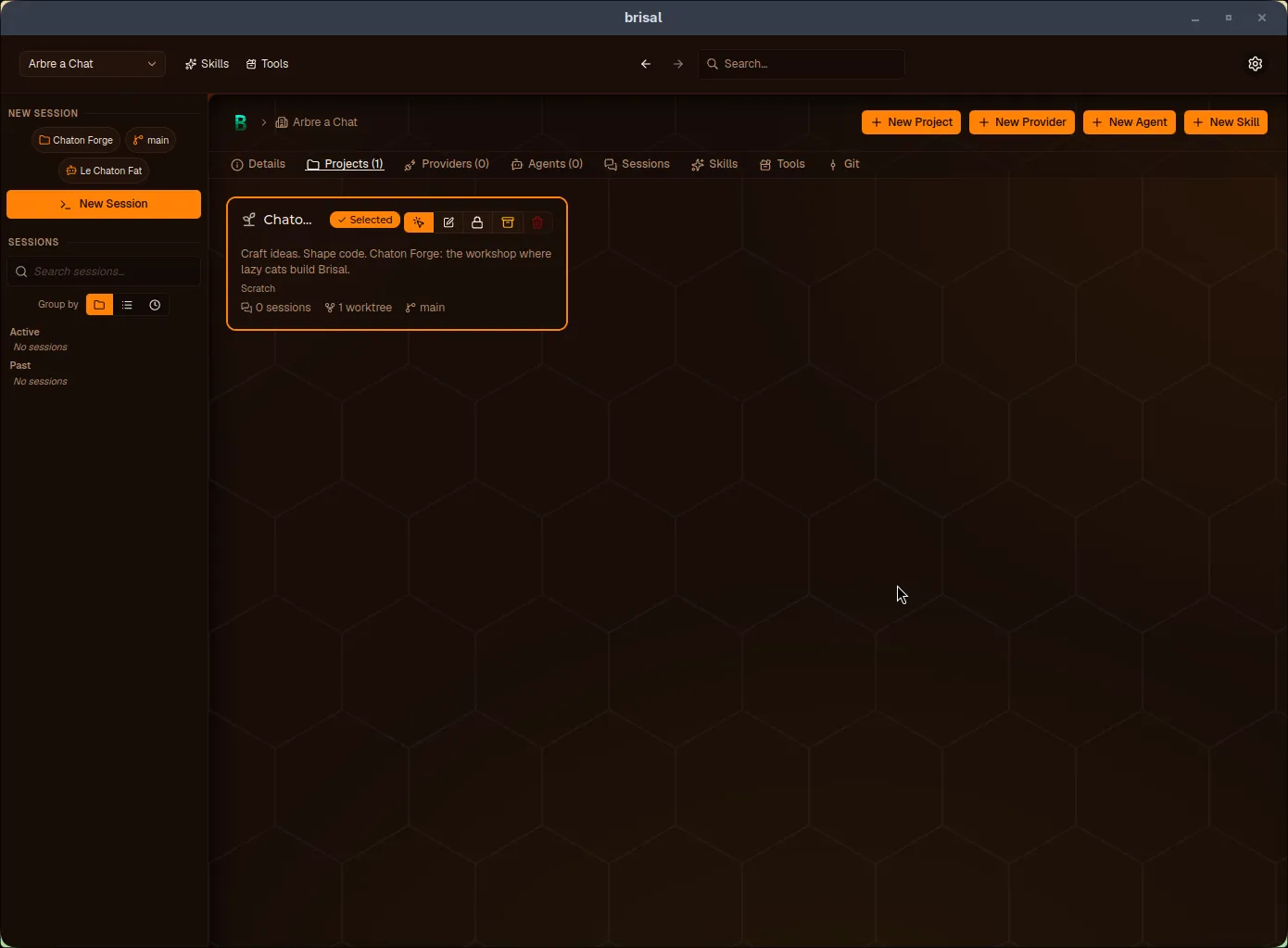
A project card with Selected badge and Select · Edit · Lock · Archive · Delete actions.
Lifecycle: lock, archive, delete
Each project card carries lifecycle actions:
| Action | What it does | When it’s unavailable |
|---|---|---|
| Select | Make this the project you’re working in | While locked |
| Edit | Change name or description | — |
| Lock / Unlock | Freeze a project so it can’t be selected, archived, or deleted. Unlock to act on it again. | Lock unavailable while archived |
| Archive / Unarchive | Set a project aside to declutter the list without deleting it. Unarchive to bring it back. | Archive unavailable while locked |
| Delete | Permanently remove the project | While selected or locked |
Lock protects from lifecycle changes; archive hides it — both reversible. To delete or re-select a locked project, unlock it first; to delete the selected project, select another first.
Project trust
Because a project can ship its own skills and hooks — project-local code Brisal would run as you — a new project is untrusted: that code stays inert until you explicitly trust it. When you open an untrusted project, an amber “Trust not set” banner offers a Manage trust button. Trust gates whether that code loads; it is not a sandbox.
The full story — banner, dialog, trust vs. deny vs. reset, and per-worktree decisions — is on Trust.
What to read next
A project is the stage; the work itself is a session on it.
- Sessions — chats you run inside a project, how they persist, and how branches and worktrees fit in (including per-worktree trust).
- Workflows — reusable DAGs that coordinate project work across Nodes, Runs, and Sessions.
- Skills and Agents — what project-scoped skills and agents are, and how project scope overrides workspace and system layers.
- Workspaces — the wall a project lives inside.