Annotations
An annotation is a line-by-line review of an agent message in a session. Click lines to comment, tag each as Question, Edit, Note, or Remove, add optional preamble/conclusion, then Send review — Brisal assembles it into a single message sent as your next turn.
Access via a message’s Annotate action, or A/Enter in message-select mode (mod+M or Ctrl+B M).
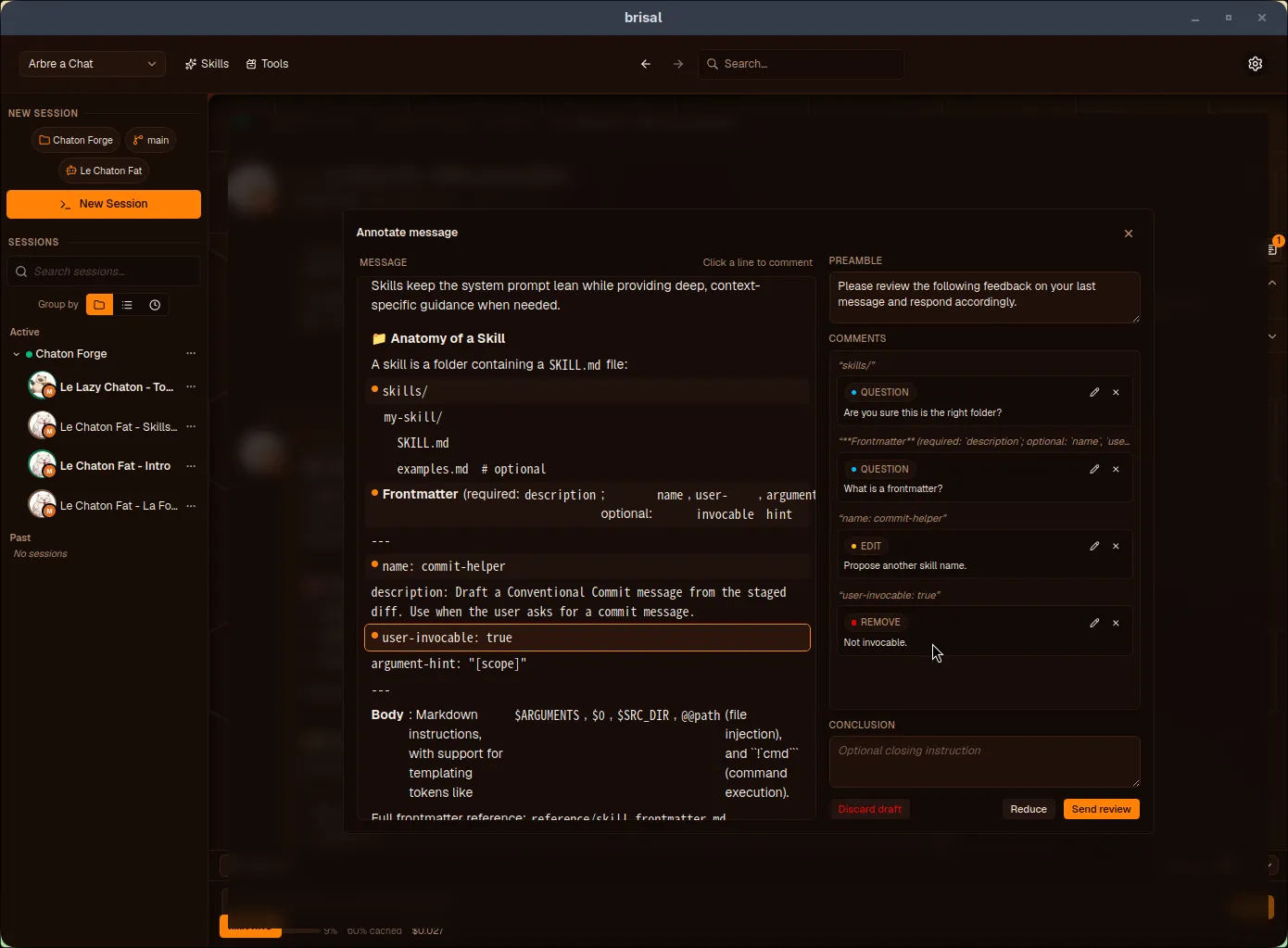
Click a line, tag your comment, add preamble/conclusion, then Send review.
Writing an annotation
- Open the overlay from a message’s Annotate action or
A/Enterin message-select mode - Click a line to attach a comment (one per line)
- Tag it Question, Edit, Note, or Remove and write your comment
- Optionally add preamble/conclusion for instructions to read first/last
- Send review — Brisal assembles it into one message the agent replies to
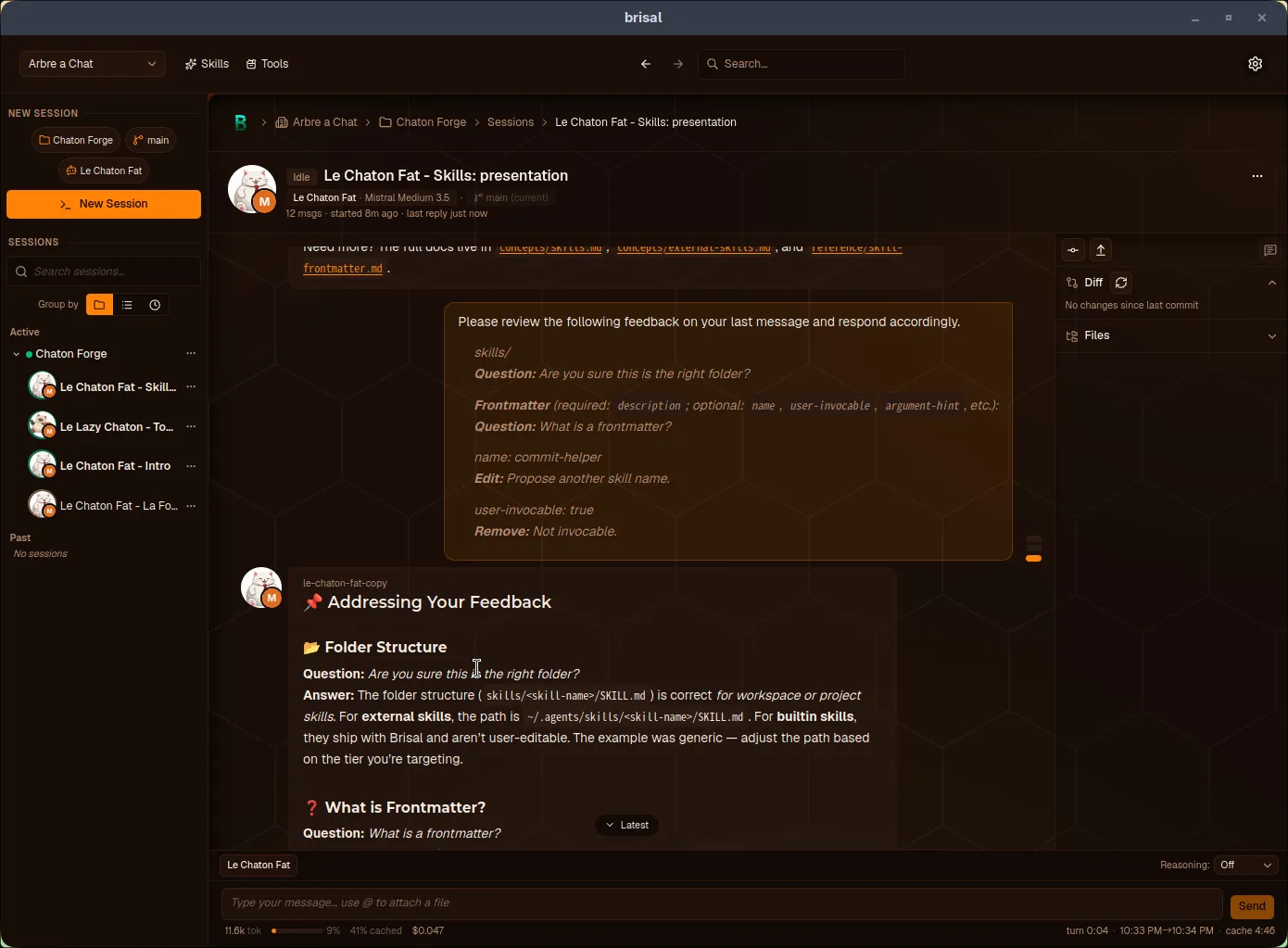
Sent reviews appear in the transcript as ordinary messages the agent replies to.
Drafts: pause and come back
Annotations in progress auto-save as drafts on first comment, so you can close and return. The Explorer toolbar’s annotated messages button shows a badge with draft count; select to return to your work. Use Discard draft to delete.
Keyboard shortcuts
The annotate overlay is fully keyboard-driven in annotate mode:
| Action | Shortcut |
|---|---|
| Move between lines | ↑ / ↓ |
| Open a comment on the selected line | A / Enter |
| Tag Question / Edit / Note / Remove | Ctrl+Q / Ctrl+E / Ctrl+N / Ctrl+R |
| Save the current comment | Ctrl+Enter (while writing) |
| Send the assembled review | Ctrl+Enter |
What to read next
- Sessions — the chat and transcript for annotations
- Explorer — toolbar access to saved drafts
- Keyboard shortcuts — all annotate mode bindings